

ABAP and SE80 to consume a Web Service - Example to demonstrate simple creation process
Below are the steps required for consuming a webservice WSDL with ABAP and SE80.
It is using a webservice called Currency converter available on the xmethods.com
website, but the concept can be applied to any webservice you find, as long as you have the url of its WSDL.
Step 1 - Access ABAP proxy creation wizard via SE80
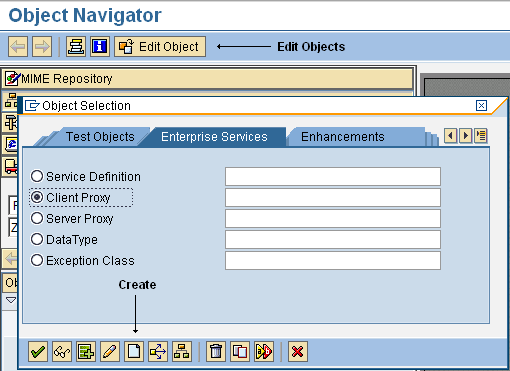
Execute transaction SE80 and within the the 'edit object' popup screen select Client proxy from the 'Enterprise Services' tab and press create.
Step 2 - Create ABAP proxy
You should now be presented with the first screen of the ABAP proxy generation wizard where you need to enter URL/HTTP Destination and press continue.
If your screen doesn't look quite the same as these images see end of this article for updated screen shots.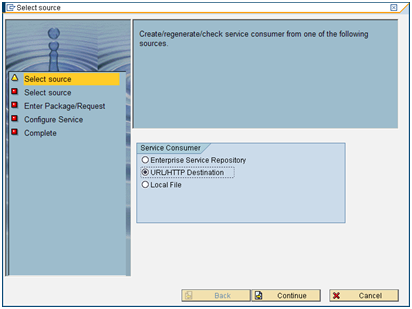
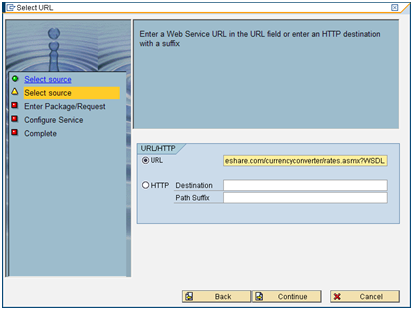
Next you need to select URL, enter the url of your webservice WSDL and press continue. For this example the WSDL will be http://webservice.webserviceshare.com/currencyconverter/rates.asmx?WSDL
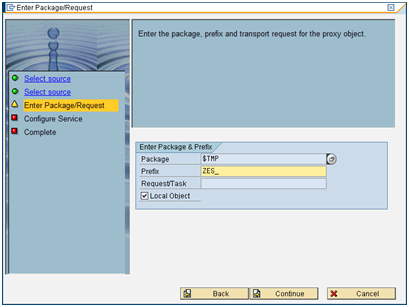
Now enter the package details or just click the local object checkbox and enter a prefix of 'ZES_'. When the auto generation occurs SAP only has a finite
number of of characters for the name of the proxy, this prefix helps ensure it does not encounter any duplication problems when it trims dowm names to fit in the field
available. Now press Continue and on the next screen press Complete.
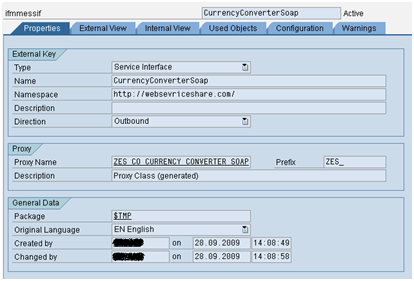
Your ABAP proxy should now generate and you should be presented with the following screen. Save and activate it!
Step 3 - Create a logical port
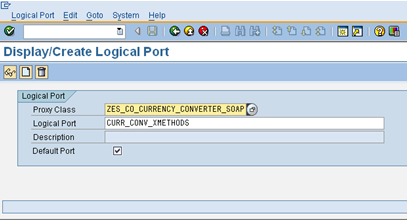
Execute transaction LPCONFIG and within Proxy class enter the proxy you just created ZES_CO_CURRENCY_CONVERTER_SOAP in SE80. Then with
the Logical Port enter an appropriate name such as CURR_CONV_XMETHODS. Tick the Default Port checkbox and press create.
Step 4 - Setup Call parameters
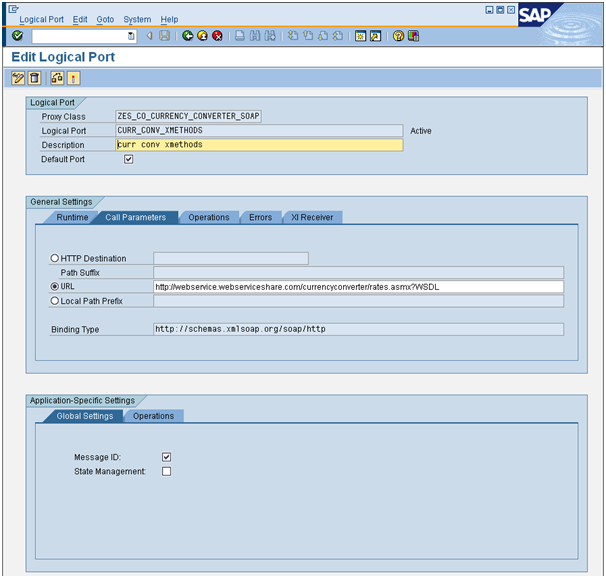
Within the 'Call Parameters' tab select URL and enter the url of the WSDL again (http://webservice.webserviceshare.com/currencyconverter/rates.asmx?WSDL).
Step 5 - Setup Operations
Right this is where it gets a little messy as now we need to add the reference from the actual WSDL code into each operation.
Basiaclly within the WSDL there is a section which details each operation and specifies a soapAction url. We simply need to find this
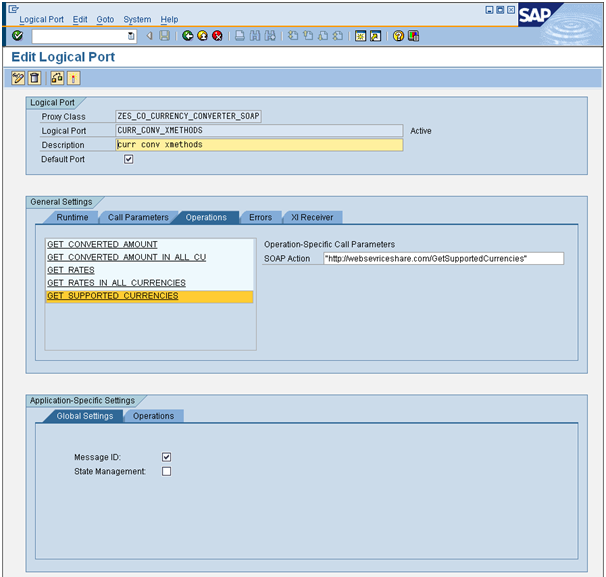
soapAction url and enter it into the operations tab for the appropriate operation. I am just going to set up the 'GET_SUPPORTED_CURRENCIES' operation
but feel setup the others at any point.
To do this select the GET_SUPPORTED_CURRENCIES operation and enter the SOAP Action as "http://websevriceshare.com/GetSupportedCurrencies". This was found in the
following section of the WSDL:
	<wsdl:operation name="GetSupportedCurrencies">
<soap:operation soapAction="http://websevriceshare.com/GetSupportedCurrencies"
                                                               style="document"/>
Step 6 - Test your webservice ABAP proxy
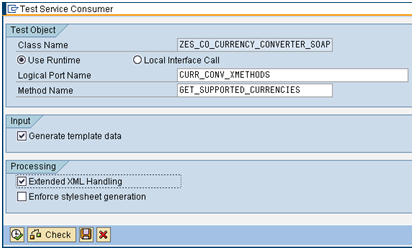
Make sure you save and activate the logical port and return to your ABAP proxy with SE80. Hit the test button and enter CURR_CONV_XMETHODS as your logical port name
and GET_SUPPORTED_CURRENCIES as the method name (action). Now press execute!
Step 7 - Enter input details
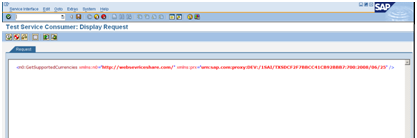
As this method/action of the webservice does not require an input values simply press the execute button again.
Step 8 - Enter input details
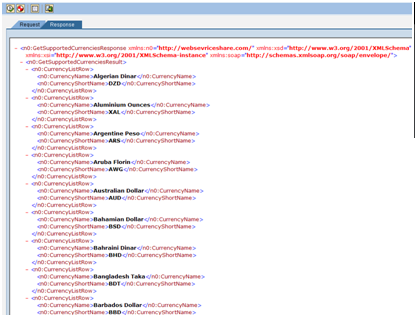
The webservice results should now be displayed, a list of all the currency codes supported by the webservice.
Step 9 - UPDATE!!!
In later versions of SAP the SE80 screen looks different and a Client proxy is now refered to as a Proxy Object, still
within the Enterprise Services tab. You can now see the internal key details as well as the External key details
from here.
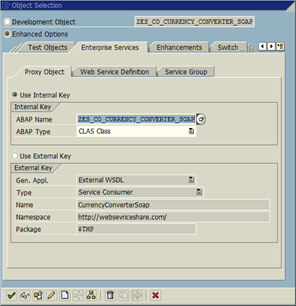
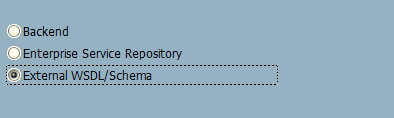
Creation is still via the create button at the bottom of this screen but you choose slightly different options.
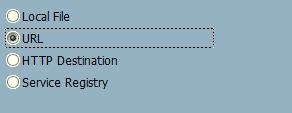
For example you choose "External WSDL/Schema from the first menu.
and then URL from the next menu.
 Click here for Main Web Service Menu
Click here to Add transition layers to your VC application so that each form is on a separate page.
Click here for Main Web Service Menu
Click here to Add transition layers to your VC application so that each form is on a separate page.