

Add back button to your portal ABAP web dynpro based iview, returns user to page iview was called from
The default framework includes the Search bar so modifying this will allow you to remove this if you do not want to see it on your portal.
The best way to change the default framework is to copy it and then modify the copy to include any changes you may require.
Also provides a development base for your future theme changes which will not impact on the standard SAP ones.
Step 1 - Login
First things first you need to login to your SAP portal as the Portal administrator.
Step 2 - Copy default framework
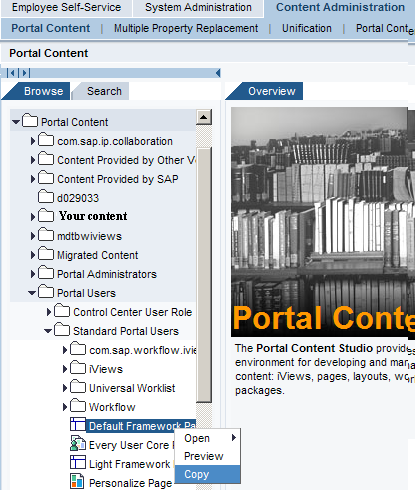
Go to Content Administration tab and open the following folder: Portal Content->Portal User->Standard Portal Users. Now right click on
the 'Default Framework page' item in this folder and select 'Copy'.
Step 3 - create new framework(paste)
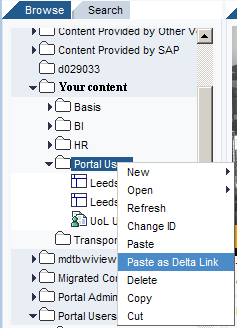
Now go to your own content folder, i.e. the one you have created to store your own content. Right click on 'Portal Users' folder within here
and choose 'Paste as a Delta Link'.
Step 4 - Change id of new framework
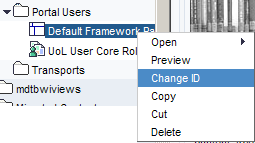
Now right click on the newly created delta link and choose 'Change ID'
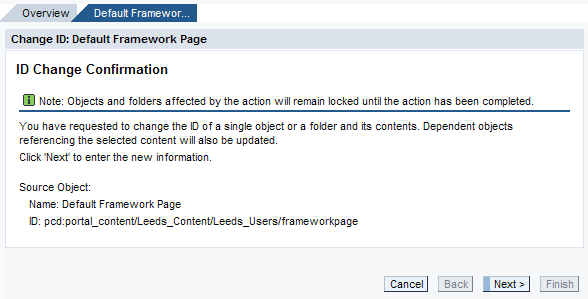
A process will happen checking whether this action is possible. On the confirmation page click next.
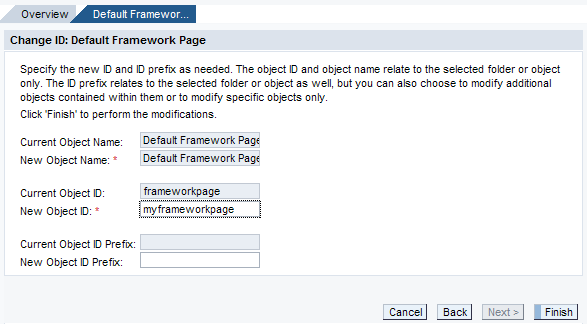
Now enter your new object ID i.e. myframeworkpage and press Finish
Step 5 - Modify framework page
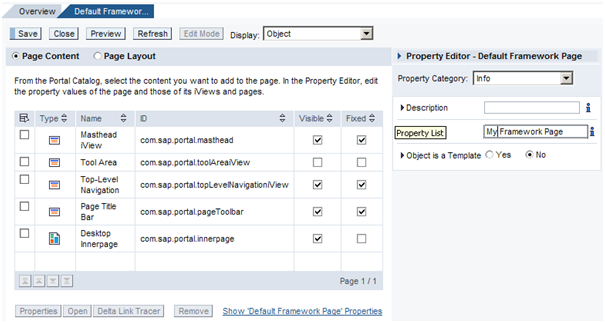
Next double click on the newly created default framework page within your content folder. If your want to
remove the search bar then untick the 'Visible' column for the 'Tool Area' row. Also set the name(far right) to
one of your choosing (i.e. My Framework Page)
Step 6 - Desktop Innerpage
If you check the Desktop Inner page checkbox and choose open you can modify its associated attributes such as
portal favourites.
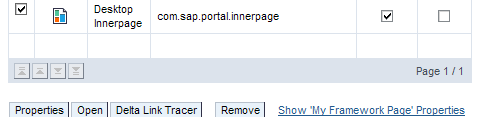
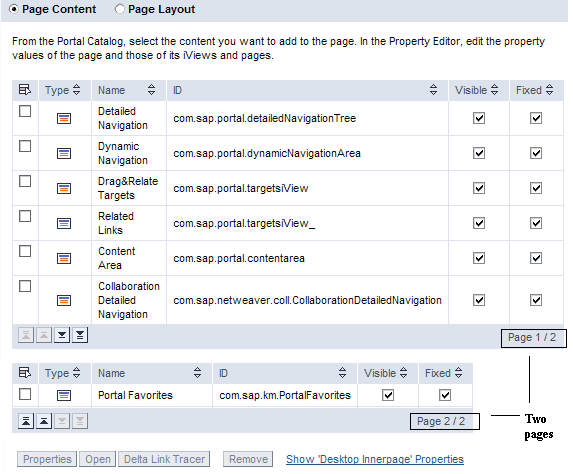
Therefore if you want to remove the portal favourites untick its checkbox and click save.
Step 7 - Finished
Your new portal framework page has now been created
Step 8 - Next step
Next step is to create a new SAP Portal theme.